# DECO Product Banners

{% hint style="info" %}
**DECO Banner:** Notification bars, which **HANG ON THE TOP/BOTTOM/ CUSTOM POSTION** of your page(s) to notify **SALE** campaigns, **special deals** or to **highlight important information** about website.
{% endhint %}

<figure><img src="https://2681927162-files.gitbook.io/~/files/v0/b/gitbook-x-prod.appspot.com/o/spaces%2F2MNif3OucL2KXUvJtdd3%2Fuploads%2F2XIEGQ3ubsU6Wwv8e1sX%2Fimage.png?alt=media&#x26;token=ad484bf8-4a57-470e-9886-389d24aaeb8e" alt=""><figcaption></figcaption></figure>

<figure><img src="https://2681927162-files.gitbook.io/~/files/v0/b/gitbook-x-prod.appspot.com/o/spaces%2F2MNif3OucL2KXUvJtdd3%2Fuploads%2FikAHCoU9y2orGSsYe0uf%2Fcreate%20new%20banner.png?alt=media&#x26;token=56b62766-168f-4113-95dd-8ecd28f3210b" alt=""><figcaption></figcaption></figure>

### What are DECO banner types I can select?

* After hitting on "Create banner"/"Create", select 1 of banner types here to start:

<figure><img src="https://2681927162-files.gitbook.io/~/files/v0/b/gitbook-x-prod.appspot.com/o/spaces%2F2MNif3OucL2KXUvJtdd3%2Fuploads%2FufQ22gbljWQXev6swvQk%2Fbanner%20type.png?alt=media&#x26;token=0a79b8f3-8d6f-4d7b-8a6a-2b9ce6f03186" alt=""><figcaption></figcaption></figure>

### How can I create my banner?

* You will need to **go through 2 steps**: **Content** > **Design**

<figure><img src="https://2681927162-files.gitbook.io/~/files/v0/b/gitbook-x-prod.appspot.com/o/spaces%2F2MNif3OucL2KXUvJtdd3%2Fuploads%2FgU4EfdbxRLRLTqt1QyCs%2F1.png?alt=media&#x26;token=200d0703-3470-418b-be8f-5afe981d412d" alt=""><figcaption></figcaption></figure>

## Step 1: Content

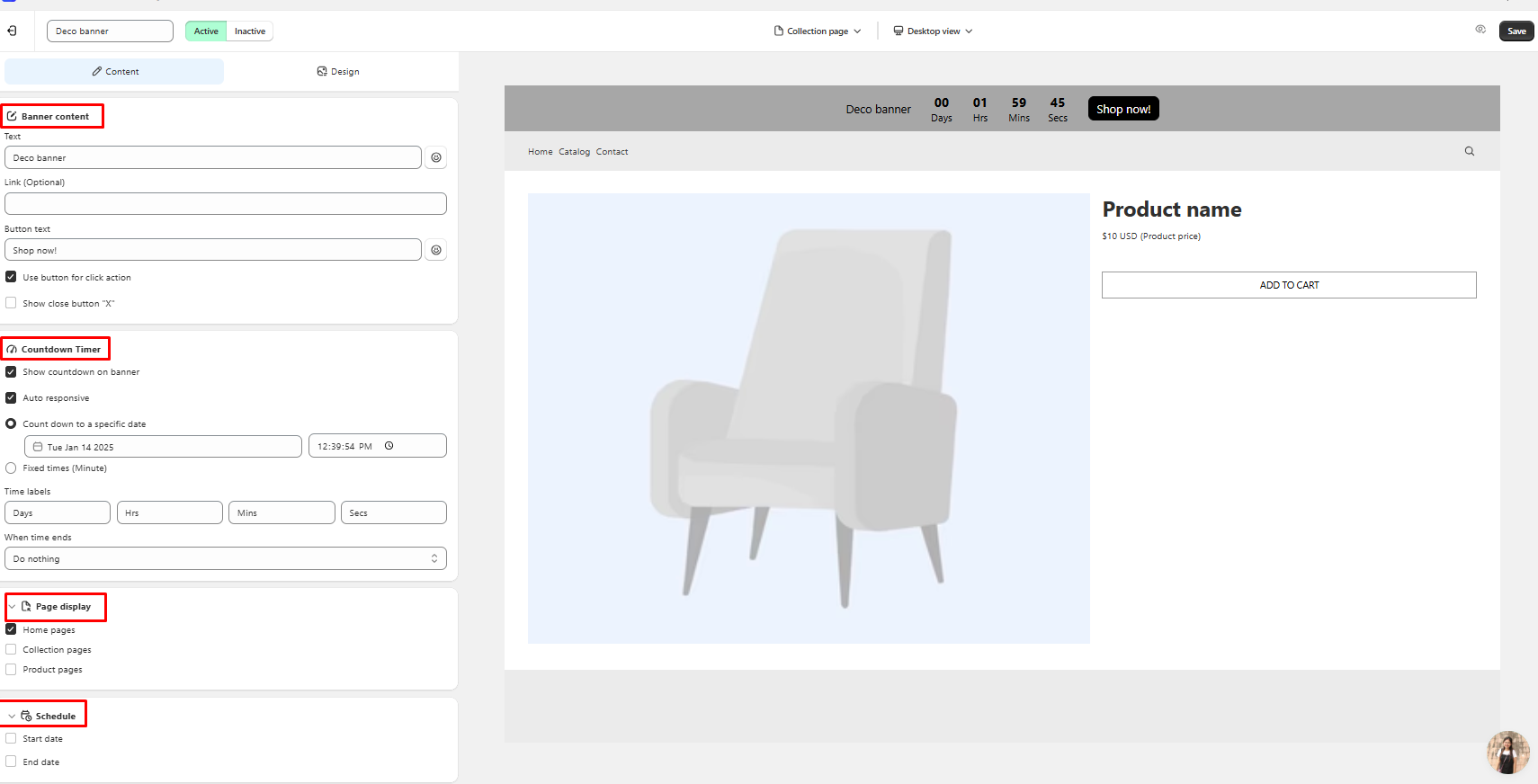
* Here is where you can **choose** which **basic look** for your banner: Banner content, Pages to display, and Time to display
* Depending on which kinds of DECO Banner you selected, it'll have the different look on "Content" section

### 1. Fixed banner

* Banner ***won't move,*** the text inside will stay still

<figure><img src="https://2681927162-files.gitbook.io/~/files/v0/b/gitbook-x-prod.appspot.com/o/spaces%2F2MNif3OucL2KXUvJtdd3%2Fuploads%2FMrkbZLV4qQh2PSHeITvc%2FScreenshot_37.png?alt=media&#x26;token=2bc4944c-552a-425a-a6a2-d858ec4eb385" alt=""><figcaption></figcaption></figure>

### 2. Automatic banner

* The content inside will ***keep moving horizontally*** based on the duration you set up

<figure><img src="https://2681927162-files.gitbook.io/~/files/v0/b/gitbook-x-prod.appspot.com/o/spaces%2F2MNif3OucL2KXUvJtdd3%2Fuploads%2FlVFTVR0ZBt6uB3zzxaRC%2FScreenshot_38.png?alt=media&#x26;token=0f7908a5-fd28-4540-b57f-4bceaf3528ca" alt=""><figcaption></figcaption></figure>

### 3. Slider banner

* The content will ***slide vertically or horizontally*** with the duration as you chose, you also can **choose to show "x" button** and **"arrow" button** or **not.**

<figure><img src="https://2681927162-files.gitbook.io/~/files/v0/b/gitbook-x-prod.appspot.com/o/spaces%2F2MNif3OucL2KXUvJtdd3%2Fuploads%2FQnVA5SHeZWZ4i9f3yFxG%2FScreenshot_39.png?alt=media&#x26;token=4b851af3-1eca-4e5d-bea3-9391dd1dc107" alt=""><figcaption></figcaption></figure>

### 4. Countdown banner

* This is a banner type to be used when you want to create a sense of urgency for customers, especially for sale campaign, or big events.

<figure><img src="https://2681927162-files.gitbook.io/~/files/v0/b/gitbook-x-prod.appspot.com/o/spaces%2F2MNif3OucL2KXUvJtdd3%2Fuploads%2FktI1po5nEysIN0Vm0hsk%2FScreenshot_40.png?alt=media&#x26;token=34aa265c-1252-4b71-af94-973e13476de0" alt=""><figcaption></figcaption></figure>

{% hint style="info" %}
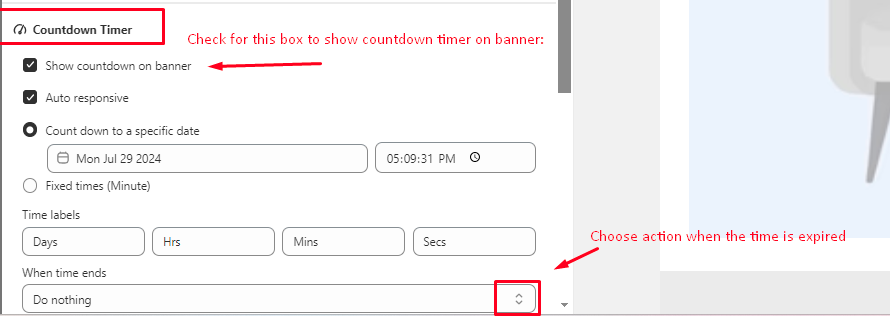
"**Countdown timer**" for "**Fixed banner"** only: You can adjust the time for this countdown timer, then also choose action when the time is expired:&#x20;

* **Do nothing** (Banner still display on your store)&#x20;
* **Hide banner** (Banner will stop showing up on your store)
  {% endhint %}

<figure><img src="https://2681927162-files.gitbook.io/~/files/v0/b/gitbook-x-prod.appspot.com/o/spaces%2F2MNif3OucL2KXUvJtdd3%2Fuploads%2FS95horoPo4SYem17lrcw%2FScreenshot_41.png?alt=media&#x26;token=802abb55-5ea8-4345-8b5b-a06a90509e7c" alt=""><figcaption></figcaption></figure>

## Step 2: Design

### Position

* You can choose the position of your banner at: **Top page, Bottom page or Customized position**

{% hint style="info" %}
**Note:** You can tick **"Sticky banner"** if you want your banner **still be visible when you scroll through your pages**
{% endhint %}

<figure><img src="https://2681927162-files.gitbook.io/~/files/v0/b/gitbook-x-prod.appspot.com/o/spaces%2F2MNif3OucL2KXUvJtdd3%2Fuploads%2FdFLMsoFNvv1TtsGbNCCY%2FScreenshot_42.png?alt=media&#x26;token=de0cbcec-ec0e-4572-ba7c-804cfffc7997" alt=""><figcaption></figcaption></figure>

How can I add my banner to customed position?

Here is the detail video for you:&#x20;

{% embed url="<https://youtu.be/1to_GBjeOX0>" %}

### Banner design

* You can custom color for your banner, text, close button
* Here, you can also **custom banner size/ banner text size differently** on **desktop/ mobile** OR between **Product page and collection page**

<figure><img src="https://2681927162-files.gitbook.io/~/files/v0/b/gitbook-x-prod.appspot.com/o/spaces%2F2MNif3OucL2KXUvJtdd3%2Fuploads%2FL0mJ2SuJpAKNi8RKskyl%2Fimage.png?alt=media&#x26;token=ecfb360c-008b-4cc4-893e-f834b09bf143" alt=""><figcaption></figcaption></figure>

<figure><img src="https://2681927162-files.gitbook.io/~/files/v0/b/gitbook-x-prod.appspot.com/o/spaces%2F2MNif3OucL2KXUvJtdd3%2Fuploads%2FKgVN1sgsC2iAnRHrWs74%2Fimage.png?alt=media&#x26;token=4d8326ec-9a32-4644-90fc-60e1218dd253" alt=""><figcaption></figcaption></figure>

### Button

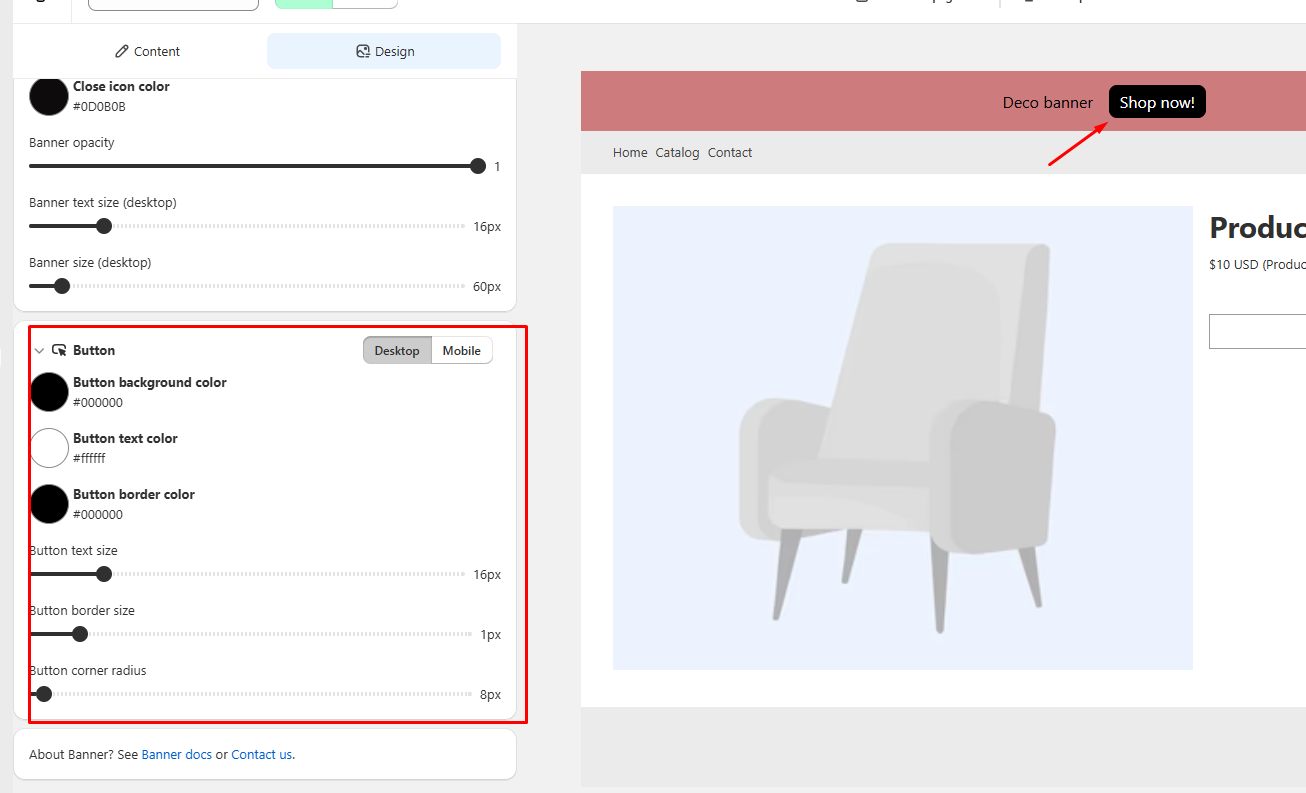
* If you enable "Call to action" button(CTA button), you can customize its color, size, etc here:

<figure><img src="https://2681927162-files.gitbook.io/~/files/v0/b/gitbook-x-prod.appspot.com/o/spaces%2F2MNif3OucL2KXUvJtdd3%2Fuploads%2FH8IFuj7syXHJ6hBa5Gmc%2Fimage.png?alt=media&#x26;token=a7c200a0-609e-4f8b-baca-9ffc8930c3a1" alt=""><figcaption></figcaption></figure>