> For the complete documentation index, see [llms.txt](https://deco-product-labels-and-badges-1.gitbook.io/deco-guidelines/llms.txt). Markdown versions of documentation pages are available by appending `.md` to page URLs; this page is available as [Markdown](https://deco-product-labels-and-badges-1.gitbook.io/deco-guidelines/our-special-features/show-deco-badges-on-bogos.io-gift-offer.md).
# Show DECO Badges On BOGOS.io Gift Offer
Quick guide to display your DECO badges on products having your BOGOS gift promotions.
## Before You Start ✨
✅ You need an **active BOGOS Gift Offer** (not other offer types). If you haven't installed BOGOS yet, [\[install here\]](https://apps.shopify.com/freegifts?utm_source=Partner\&utm_medium=DECO\&utm_campaign=Integration_Feature_Gitbook)\
✅ You need a **DECO Badge** created
## Step 1: Prepare Your BOGOS Gift Offer 🎁
### If you don't have a gift offer yet:
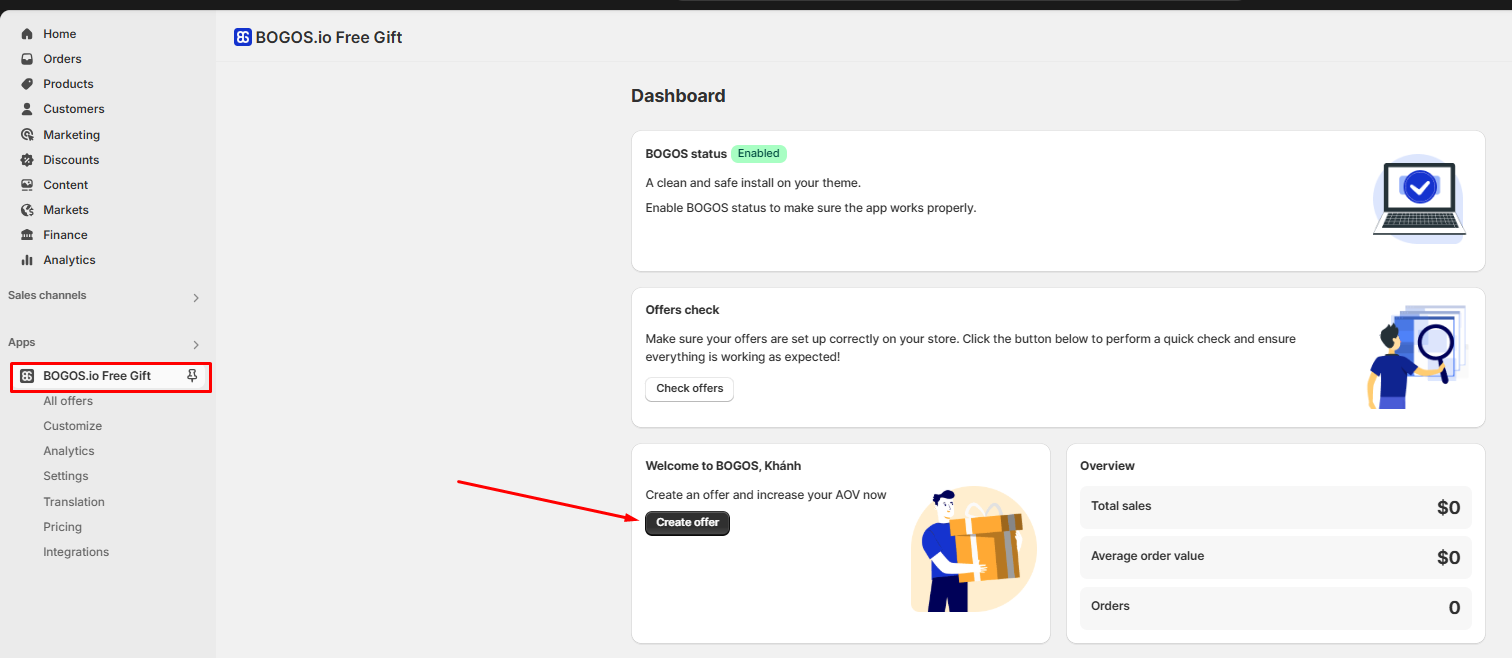
1. Go to BOGOS **Home page**
2. Click **"Create offer"**
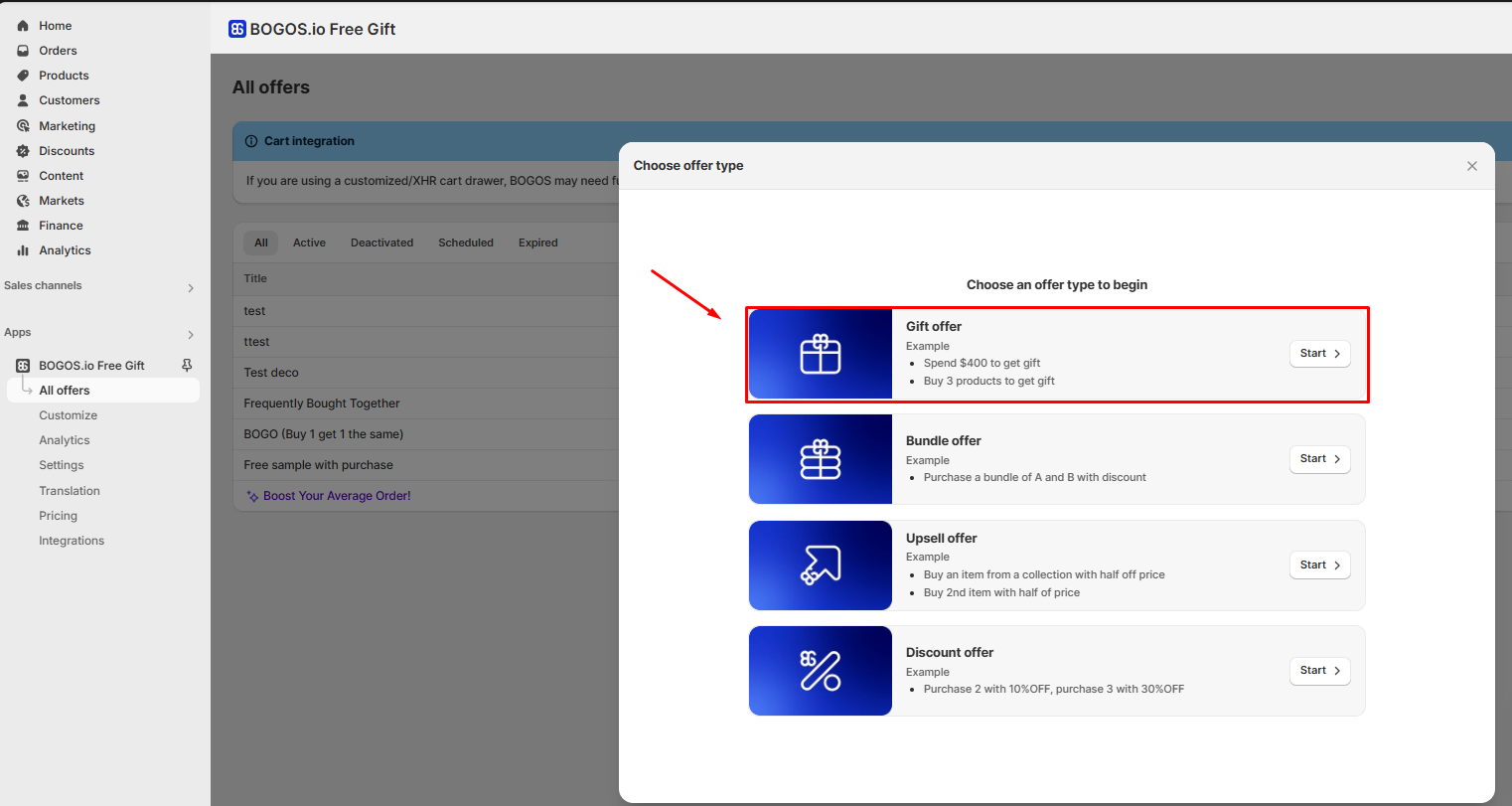
3. Select **"Gift offer"** type
4. Complete your offer setup
{% hint style="warning" %}
Only the "Gift Offer" type can work with DECO's labels & badges
{% endhint %}
### If you already have gift offers
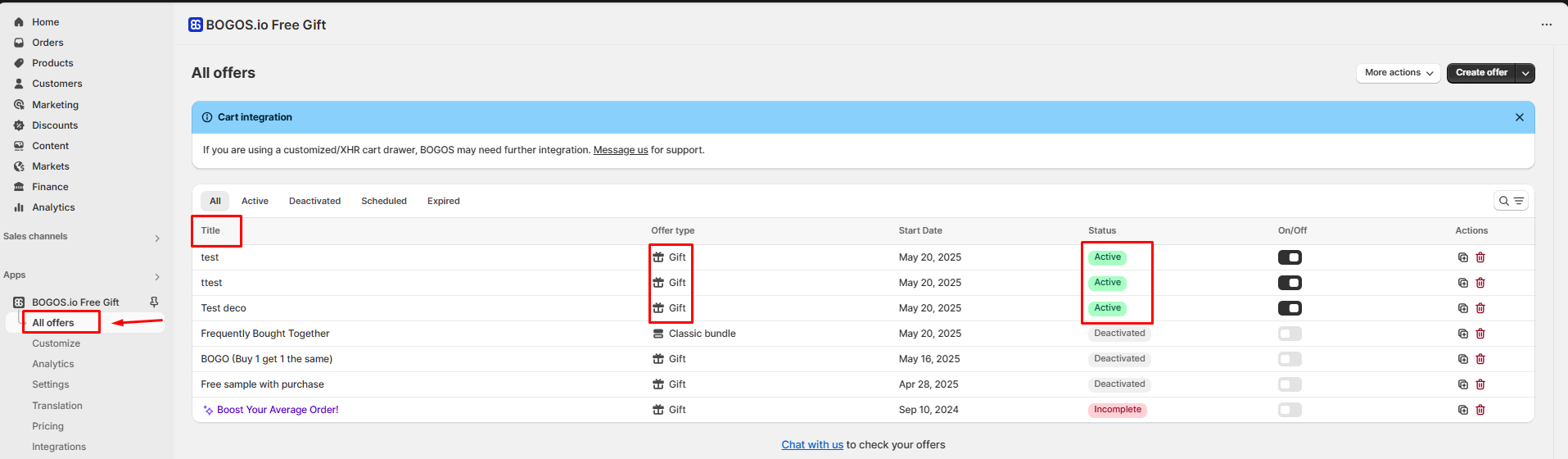
1. Go to **"All offers"** page
2. Note the **title** of the gift offer(s) you want to use
3. Make sure they're **"Gift"** type and **"Active"** status
## Step 2: Connect DECO Badges to BOGOS 🔖
### Connect the existing DECO label:
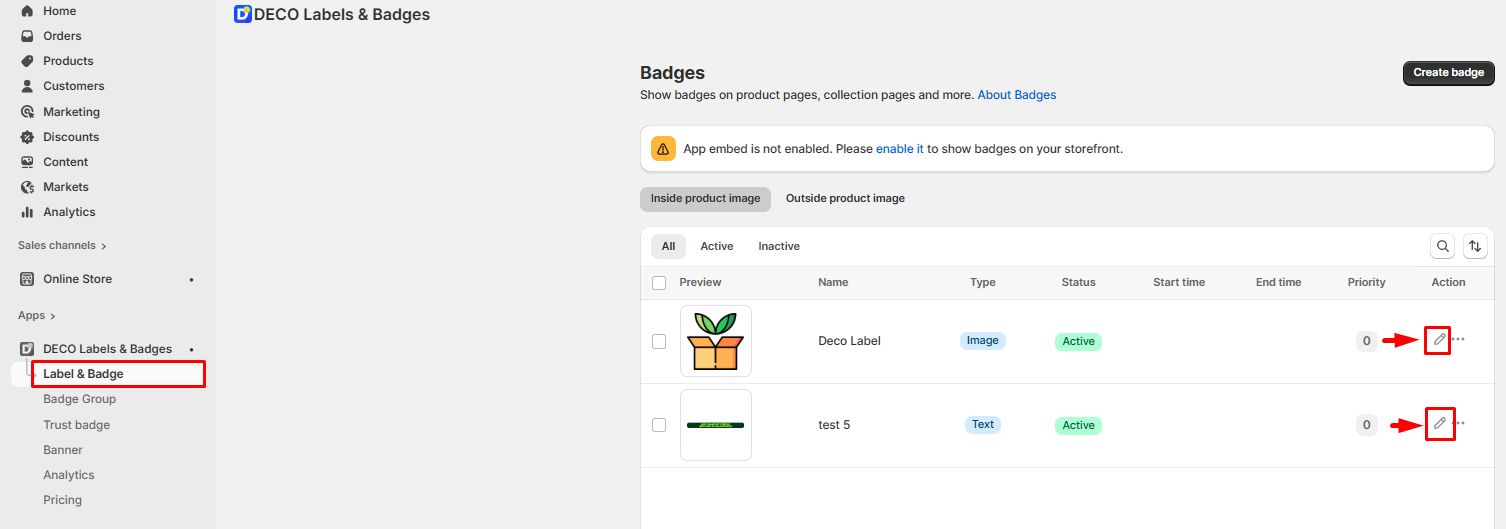
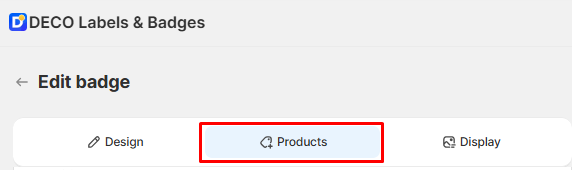
* Open the ***DECO app*** >> Then, navigate to ***"Label & Badge"*** in the navigation menu >> ***Click*** on the ***pencil icon*** to edit any badges
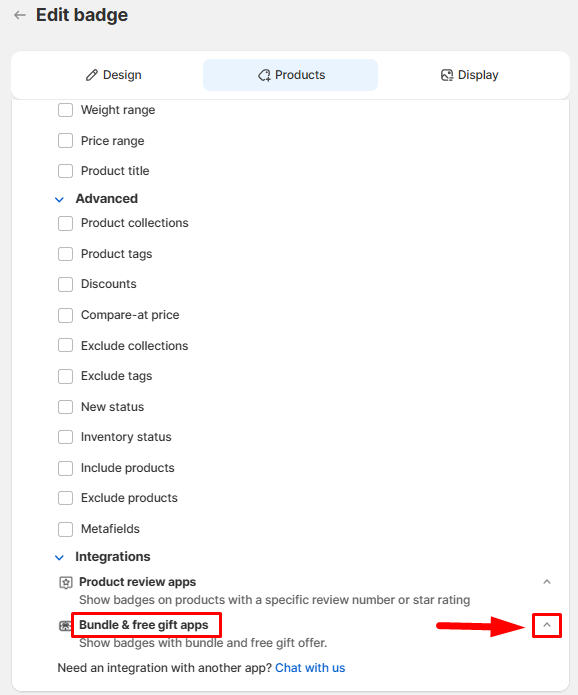
* Next, move to the **"Products****"** tab >> Scroll to ***"Integrations"*** section and click its arrow to expand it (this also switches the badge to *"Products matching conditions"*) >> Then, click ***"^"*** button next to ***"Bundle & free gift apps"***
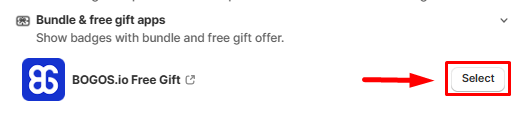
* Hence, you'll see the app: BOGOS.io Free Gift appear, click ***"Select"***
## Step 3: Link Your BOGOS Offers
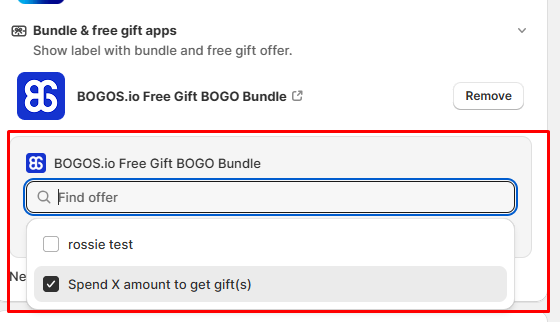
* Click on the ***"Find offer"*** search box, ***your BOGOS gift offers*** will ***appear in the list***. Each offer is tagged **Active**, **Inactive** or **Deleted** — pick an **Active** one. You can type part of the title to search; no need to copy it.
* Check the box to select.
{% hint style="info" %}
**NOTE**: If you did selected products for your BOGOS offer, **no need to re-select** them in DECO!
{% endhint %}
4. Click **"Save"**** to finish setting up**
### ✅ Done!
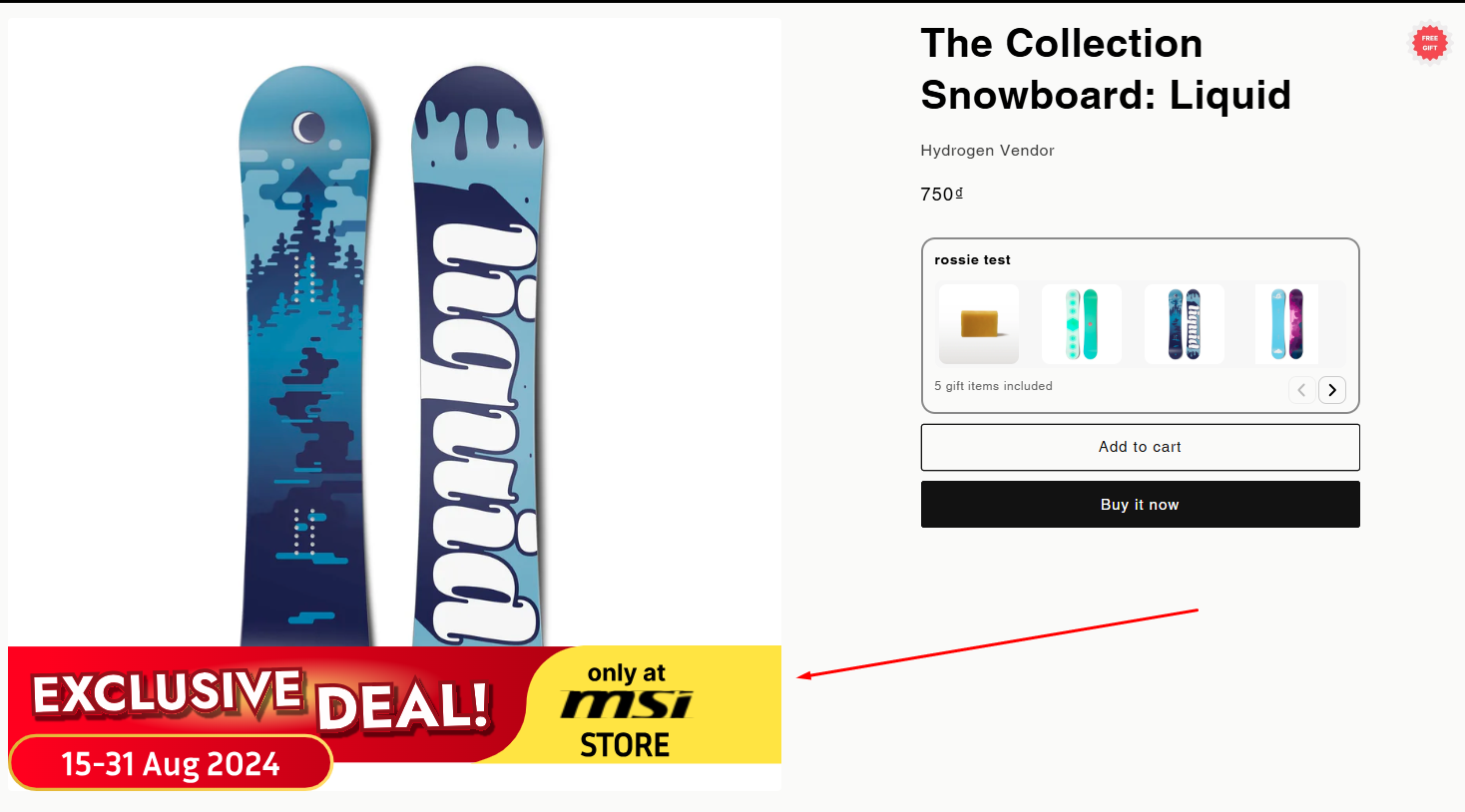
Your DECO badges will **now appear on products having the BOGOS gift offers!**
## Quick Troubleshooting
* **Badge not showing?** → Check if your BOGOS offer is "Active" and type "Gift"
* **Can't find the offer?** → Search by part of the offer title in "Find offer", and make sure the offer is a "Gift" type in BOGOS
* **Wrong products?** → Check if you have also selected other products for your DECO badges
Need further checking? [**Let us check quickly for you!**](http://go.crisp.chat/chat/embed/?website_id=17e47fa7-bddf-4074-b627-df66a29a740e) **😍**