> For the complete documentation index, see [llms.txt](https://deco-product-labels-and-badges-1.gitbook.io/deco-guidelines/llms.txt). Markdown versions of documentation pages are available by appending `.md` to page URLs; this page is available as [Markdown](https://deco-product-labels-and-badges-1.gitbook.io/deco-guidelines/our-features/deco-banners.md).
# DECO Banners
{% hint style="info" %}
**DECO Banner:** Notification bars, which **HANG ON THE TOP/BOTTOM/ CUSTOM POSTION** of the page(s) to notify **SALE** campaigns, **special deals** or to **highlight important information** about website.
{% endhint %}
## Where To Create DECO Banners?
* From the DECO home page → Navigate to Banner block:
1/ Click "**Create**" button to create new banners
2/ Click "**Manage**" to view all banners created
### What are DECO banner types I can select?
* Select 1 banner type → Hit on "**Select**" button
### How can I create my banner?
* You will need to **go through 2 steps**: **Design** > **Placement**
## Step 1: Design
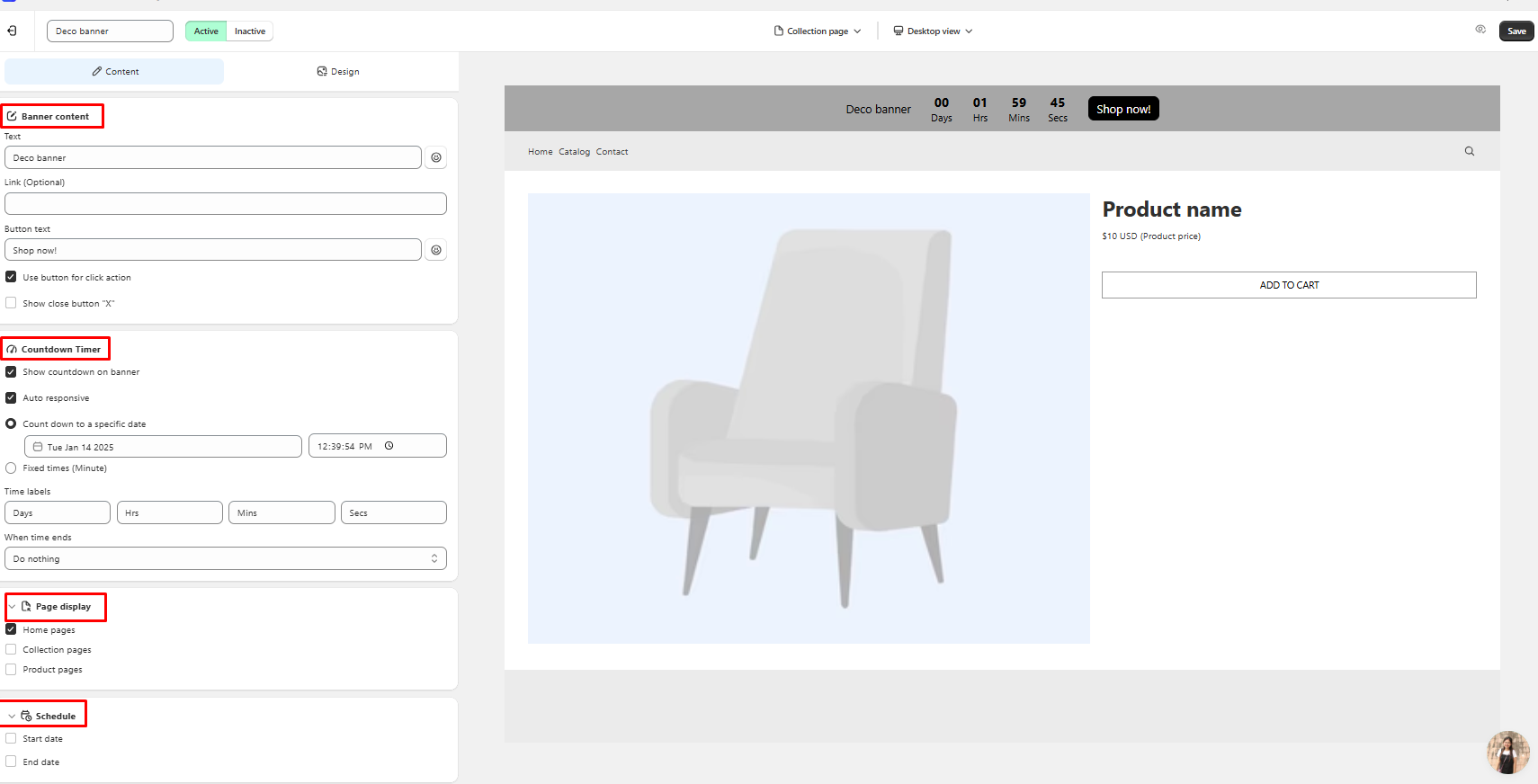
* Here is where you set the **look** of your banner: Background, Content (banner text, link, button), Size, Timer (Countdown banner only) and Button
* Depending on which kinds of DECO Banner you selected, it'll have the different look on "Content" section
### 1. Fixed banner
* Banner ***won't move,*** the text inside will stay still
### 2. Automatic banner
* The content inside will ***keep moving horizontally*** based on the **Duration** and **Gap between text** you set up
### 3. Slider banner
* The content will ***slide vertically or horizontally*** (**Slide direction**) with the duration as you chose, you also can **choose to show "x" button** and **"arrow" button** or **not.**
### 4. Countdown banner
* This is a banner type to be used when you want to create a sense of urgency for customers, especially for sale campaign, or big events.
{% hint style="info" %}
Available from the **Growth** plan.
{% endhint %}
{% hint style="info" %}
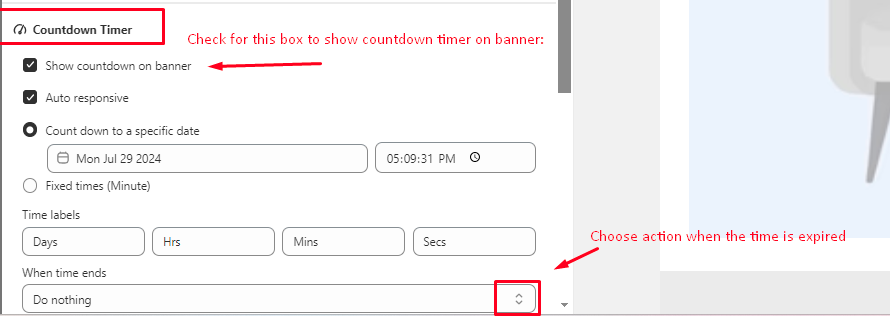
The countdown is set in the "**Timer**" section and only exists on banners created with the "**Countdown banner**" type; you can't add it to an existing Fixed banner later. In **When time ends**, choose:
* **Do nothing**: the timer stops at 00. From the next page load, the banner no longer shows
* **Hide banner**: the banner is hidden right away
* **Loop countdown** (only for *Fixed times*): the countdown starts again
See [Countdown Timer](/deco-guidelines/our-special-features/countdown-timer.md) for details.
{% endhint %}
### Banner design
* You can custom color for your banner, text, close button, or use an **Image background** instead of a solid color
* Pick a font for the banner text (default: same as your theme)
* Add a **Banner link (Optional)** to make the whole banner clickable
* Here, you can also **custom banner size/ banner text size differently** on **desktop/ mobile**
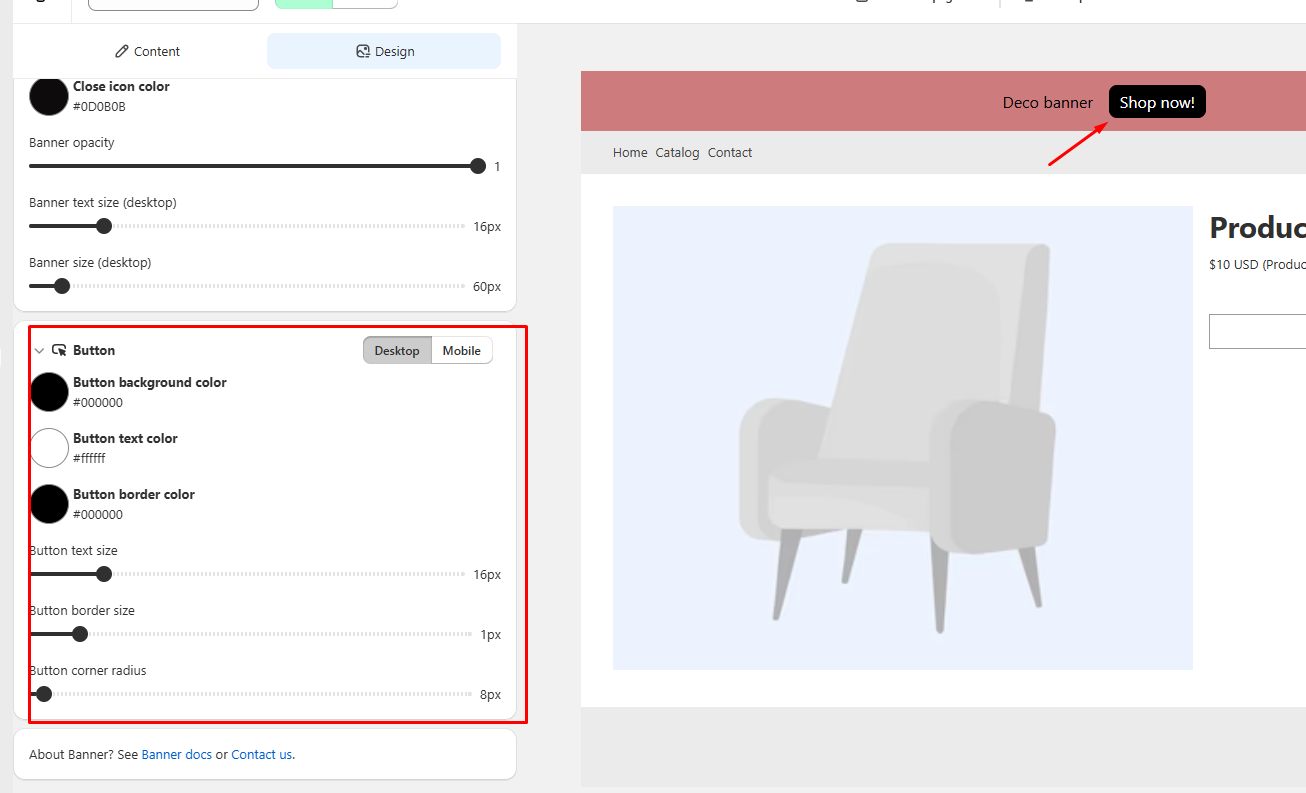
### Button
* If you enable "**Use button for click action**", you can customize its color, size, etc here:
## Step 2: Placement
Here you choose **where**, **when** and **to whom** the banner shows: Position, Page display, Show on devices, Customer country, Customer condition and Schedule.
### Position
* You can choose the position of your banner at: **Top**, **Bottom** or **Other position (Add block)**
{% hint style="info" %}
**Other position (Add block)** is available from the **Growth** plan.
{% endhint %}
{% hint style="info" %}
**Note:** You can tick **"Sticky banner"** if you want your banner **still be visible when you scroll through your pages**
{% endhint %}
How can I add my banner to customed position?
Here is the detail video for you:
{% embed url="" %}
### Page display
* **All pages**, or **Select pages**: Homepage, Collection pages, Product pages, Specific pages
### Show on devices
* **All devices**, or **Specific device**: Desktop / Mobile
### Customer country & Customer condition
* **Customer country**: show the banner only to customers from the countries you choose
* **Customer condition**: All customers, Customer with tags, or Logged-in customers
### Schedule
* Set a **Start date** and **End date** for the banner
{% hint style="info" %}
**Select pages**, **Specific device**, **Customer country**, **Customer condition** and **Schedule** are available from the **Growth** plan.
{% endhint %}