> For the complete documentation index, see [llms.txt](https://deco-product-labels-and-badges-1.gitbook.io/deco-guidelines/llms.txt). Markdown versions of documentation pages are available by appending `.md` to page URLs; this page is available as [Markdown](https://deco-product-labels-and-badges-1.gitbook.io/deco-guidelines/our-features/deco-badge-group.md).
# DECO Badge Group
This is our EXCLUSIVE feature to help manage multiple badges on the same product.
## How Badge Group Works
* **Without Badge Group**\
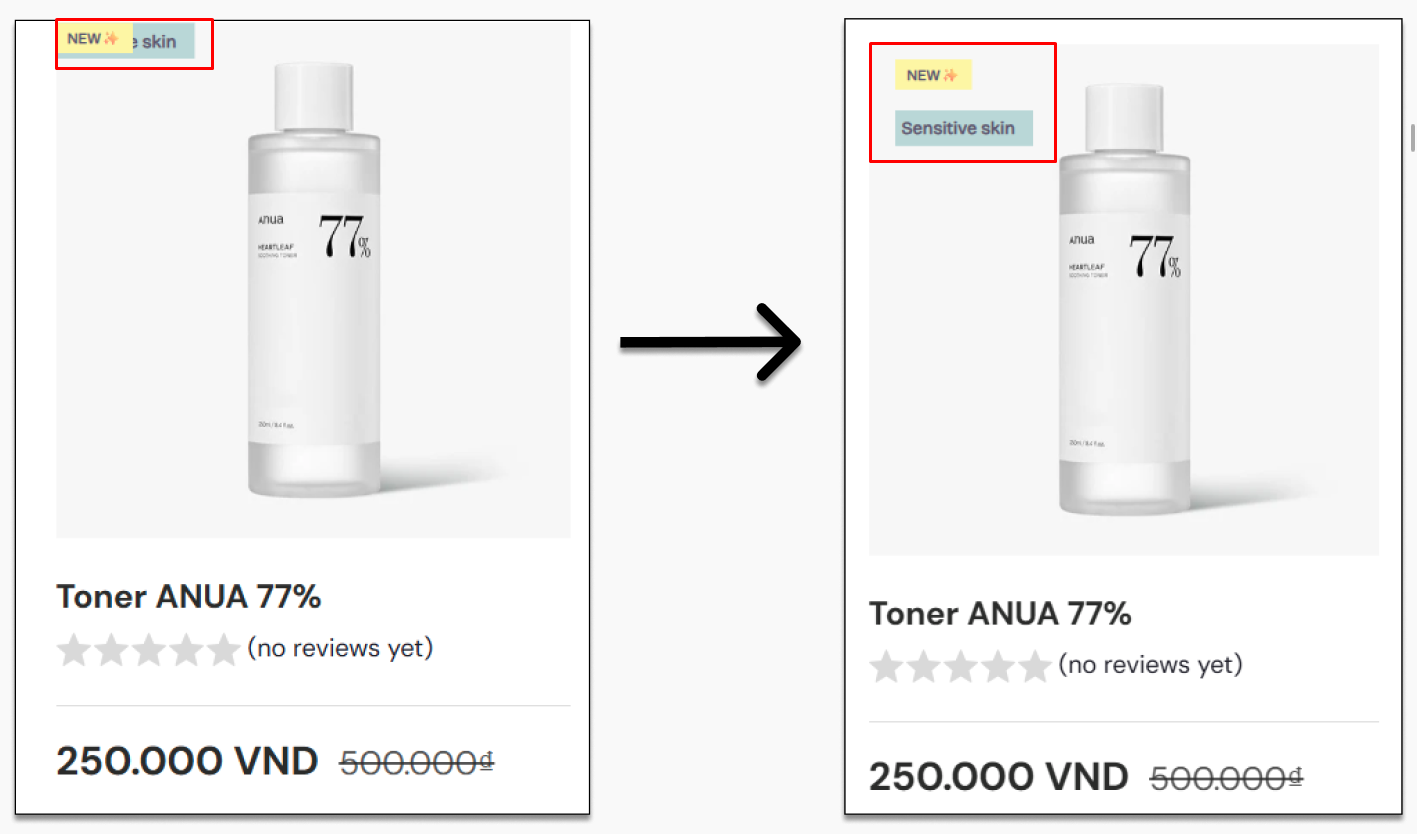
Badges are positioned individually, requiring manual spacing adjustments, risking overlap, and inconsistent spacing.
* **With Badge Group**\
Badges automatically stack and adjust position when others are removed (**SMART POSITIONING**)
⇒ *Instead of manually positioning each badge, this will **automatically organize them with proper spacing and alignment.***
### 💥 **Avoid The Badge Overlapping**
**For example:**
### 💥 **Avoid The "Awkward Position"**
**For example:**
## Setup Guideline
### ✨Step 1: Create Individual Badges
* If you haven't had any badges yet >> Then, you'll need to create them first **( Or skip this step if you already have at least 2 badges created )**
### ✨Step 2: Access Badge Group
* Navigate to the "***Badge Group***" section in the navigation menu >> **Click *****"Create group"***
{% hint style="info" %}
Available from the **Growth** plan (1 active group). The **Unlimited** plan allows unlimited groups.
{% endhint %}
### ✨Step 3: Create Badge Group
* First, select the position you need first:
1/ **Inside product image**
2/ **Outside product image**
* Click ***"Add badges to group"*** - depending on the selected position, the corresponding badge list will appear.
* ***Check the badge(s)*** you want to select, then ***click "Done"*** to save.
### ✨Step 4: Customize Badge Design
* Here, you can ***change*** the ***badge group's position***, ***design type***, ***adjust spacing***, ***use CSS***, etc to make your badge group look more stunning!
* For groups ***inside product image***, the position can be one of the 4 corners: ***Top left, Top right, Bottom left, Bottom right***.
* ***This position setting overrides individual badge positions.***
{% hint style="info" %}
NOTE: The app ***automatically shows/hides badges based on whether products meet the display conditions***.
{% endhint %}
### ✨Step 5: Preview & Publish
* Click **"Save"** to apply changes
* Then, **click "View on store"** to ***see how it look on the website*** or click **"Fix it now!"** if you notice any display problem that not as expected.